
Appearance
File: ai-agents.md
AI Traffic
AI assistants read websites for the people using them, and AI companies crawl the web to build search indexes and train models. None of that is a person reading your page.
The AI Traffic section of your dashboard shows how much of your traffic is AI, and where it comes from.
AI traffic is not counted in your pageviews, visitors, bounce rate or anything else, and it's not billed.
What it shows
- The share of AI versus human traffic for the selected dates.
- A list of AI traffic in three tabs:
- User: an AI fetching a page because someone just asked it something. ChatGPT, Claude, Perplexity and agentic browsers.
- Search: crawlers building an AI's search index.
- Training: crawlers collecting pages to train models.
Search and Training need Cloudflare connected.
What Cabin sees by default
Cabin's tracking script runs in the browser, so it sees AI agents that load a page and run its JavaScript. That covers most User traffic.
It can't see:
- Crawlers such as
GPTBotandClaudeBot. They download the HTML and never run JavaScript. - Blocked requests. If your server, host or CDN blocks a bot, the page never loads, so the script never runs.
If you want to see all AI traffic, including crawlers, connect Cloudflare below.
Connect Cloudflare
If your site is behind Cloudflare, open your site's settings, find AI traffic and click Connect Cloudflare. You sign in to Cloudflare and approve read-only access. There's no API token to create. Cabin then reads AI crawler requests from your Cloudflare account, including the ones Cloudflare blocked, and adds them to your dashboard. Blocked bots are labelled, for example GPTBot (blocked).
- It's read-only. Cabin never changes your Cloudflare settings.
- The last 30 days are filled in when you connect. After that it updates every hour.
- Only crawlers verified by Cloudflare or by the operator's published IP ranges are counted. Requests pretending to be an AI crawler are left out.
- Cabin checks a crawler's IP against those ranges and never stores it.
- The site's owner or a manager can connect it. It runs on the owner's plan.
If you see This domain isn't in that Cloudflare account, you signed in to a Cloudflare account that doesn't hold the site. Connect again and pick the account that does.
Disconnecting
Click Disconnect on the same card. Cabin gives up its access at Cloudflare and stops syncing. The crawler data leaves your dashboard but isn't deleted, so if you connect again later, your history comes back with it.
How agents are identified
Agents are matched on the User-Agent string they send, against the community-maintained ai.robots.txt list. Ordinary search and social crawlers such as Googlebot aren't counted as AI; they're filtered out as bots, the same as always.
If you see an agent you think is missing, tell us.
File: api.md
Cabin Analytics API
Cabin provides a read-only API for accessing your data. Analytics responses are aggregated (just like how they are stored and viewed in the dashboard) and are available in JSON format.
On the Free plan, use AI/MCP access instead. It's included on every plan and can answer the same questions in plain language.
API Key
To use the API, you need to create an API key in the API keys settings section of your account.
Each key is read-only and can be scoped to all of your domains or limited to specific ones.
API keys aren't used for AI/MCP access. Agents sign in with OAuth instead, and need no key at all.
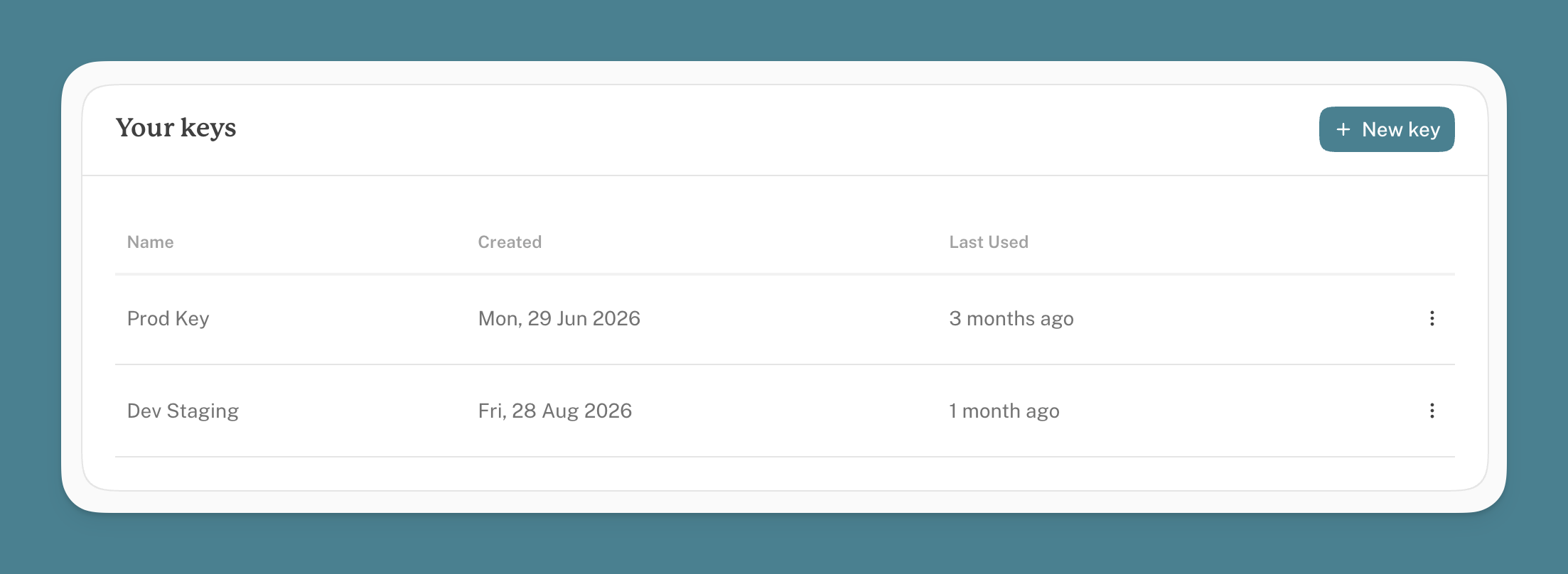
- Select 'New Key'
- Give your key a name
- Select which domains you want to grant access to
- Click 'Create'
Authentication
To authenticate your requests, you need to include your API key in the x-api-key header of your requests.
Example request:
bash
curl -X GET "https://api.withcabin.com/v1/analytics?domain=example.com&date_from=2025-01-01&date_to=2025-02-01&scope=core&limit_lists=20" -H "x-api-key: YOUR_API_KEY"Endpoints
The api is available at https://api.withcabin.com/v1/{endpoint}.
/analytics
This endpoint returns aggregated data about your website's traffic between two dates, including aggregated daily data for pageviews and bounces.
Query Parameters
domain
string requiredThe domain name for which you want to retrieve analytics data.
date_from
string requiredThe start date for the data (format: YYYY-MM-DD).
date_to
string requiredThe end date for the data (format: YYYY-MM-DD).
scope
string optionaldefault: core - The scope of the data. Can contain any combination of core,pages,referrals,events.
limit_lists
number optionaldefault: 50 - The number of items to return in each list. Values above 250 aren't rejected, but responses get large and slow, so treat 250 as the practical ceiling.
This affects countries, languages, browsers, operating_systems, devices, screen_sizes, pages and referrals.
Percentages in the response remain contextual to the entire dataset regardless of the limit.
About Scope
The scope pages and referrals add additional data for individual paths on your domain - see the Example Response. These are slightly heavier so we recommend using core unless you need the additional data.
Energy emissions data is only available with the pages scope.
Scroll depth also comes with pages, in two places: a scroll_depth object on each page, and a site-wide scroll_depth at the top level. The site-wide one is summed over every page before limit_lists is applied, so it does not match the sum of the pages you were sent.
events returns your custom events, each with a breakdown of the pages it fired on. It reads the same underlying data as pages, so asking for pages,events together costs no more than asking for either one.
The AI agent breakdown comes back under core, with no extra request. It covers AI agents seen by the tracking script only. Crawler visits from a Cloudflare connection aren't in the API; they're in the dashboard and in MCP's ai_crawlers scope. These hits are counted separately from summary.page_views and are never billable, so ai_agents does not sum into your pageview total, and each percentage is a share of agent traffic rather than of all traffic.
Example Response
json
{
  query: {
    domain: "example.com",
    date_from: "2025-01-01",
    date_to: "2025-02-01",
    scope: "core,pages,referrals",
    limit_lists: 10
  },

  /* Available with scope: core */

  summary: {
    page_views: 1959,
    unique_visitors: 1165,
    bounces: 817,
    bounce_rate: 0.29871244635193134
  },
  daily_data: [
    {
      timestamp: 1735689600000,
      page_views: 22,
      unique_visitors: 16,
      bounces: 12,
      bounce_rate: 0.75
    },
    {
      timestamp: 1735776000000,
      page_views: 29,
      unique_visitors: 26,
      bounces: 23,
      bounce_rate: 0.88
    },
    {
      timestamp: 1735862400000,
      page_views: 24,
      unique_visitors: 16,
      bounces: 13,
      bounce_rate: 0.81
    }
  ],
  screen_sizes: {
    small: 38,
    medium: 372,
    large: 463
  },
  devices: {
    desktop: 873,
    mobile: 288,
    tablet: 4,
    smart_tv: 0,
    console: 0,
    wearable: 0
  },
  browsers: [
    {
      name: "Chrome",
      value: 718
    },
    {
      name: "WebKit",
      value: 117
    },
    {
      name: "Firefox",
      value: 85
    }
  ],
  operating_systems: [
    {
      name: "Windows",
      value: 467
    },
    {
      name: "Mac OS",
      value: 365
    },
    {
      name: "iOS",
      value: 223
    }
    // ...
  ],
  countries: [
    {
      code: "GB",
      value: 362
    },
    {
      code: "US",
      value: 263
    },
    {
      code: "JP",
      value: 41
    }
    // ...
  ],
  languages: [
    {
    code: "en",
      value: 887
    },
    {
      code: "ja",
      value: 37
    },
    {
      code: "ru",
      value: 32
    }
    // ...
  ],
  traffic_sources: {
    email: 0,
    search: 217,
    social: 151,
    unknown: 789
  },
  ai_agents: [
    {
      name: "ChatGPT",
      hits: 34,
      percentage: 0.9444
    },
    {
      name: "Claude",
      hits: 2,
      percentage: 0.0556
    }
  ],

  /* Available with scope: pages */

  energy: {
    page_count: 22,
    green_hosting: {
      url: "nicmulvaney.com",
      hosted_by: "Cloudflare",
      hosted_by_website: "https://www.cloudflare.com",
      partner: null,
      green: true,
      hosted_by_id: 779,
      modified: "2025-03-17T20:24:22",
      supporting_documents: [
        {
          id: 18,
          title: "Blog post - The Climate and Cloudflare",
          link: "https://blog.cloudflare.com/the-climate-and-cloudflare/"
        },
        {
          id: 1264,
          title: "Cloudflare 2023 Emissions Inventory",
          link: "https://s3.nl-ams.scw.cloud/tgwf-web-app-live/uploads/Cloudflare_2023_Emissions_Inventory.pdf?X-Amz-Algorithm=AWS4-HMAC-SHA256&X-Amz-Credential=SCWT1WBAW6NZ5SW5GYJ8%2F20250317%2Fnl-ams%2Fs3%2Faws4_request&X-Amz-Date=20250317T202736Z&X-Amz-Expires=3600&X-Amz-SignedHeaders=host&X-Amz-Signature=0d3b2ffd9a885dbc41193e0e72bdee9c4ee8cf37671af3d092453578cc5a179c"
        }
      ]
    },
    average_time_spent_ms: 122892,
    average_co2_grams: 0.0708,
    total_co2_grams: 138.65,
    total_distance_km: 0.55,
    total_kettles: 4,
    transferred_bytes: 1145572683,
    total_bytes: 22060595,
    duration_total_ms: 240746383,
    duration_count: 1272
  },
  pages: [
    {
      path: "/page/1",
      page_views: 271671,
      unique_visitors: 243070,
      average_duration_seconds: 123,
      total_bytes: 8.2,
      co2_grams: 538,
      page_views_percentage: 0.12,
      scroll_depth: {
        average_percentage: 46.2,
        measured_visits: 1840,
        reached_at_least: [
          { percent: 0, visitors_percentage: 100 },
          { percent: 10, visitors_percentage: 88.37 },
          { percent: 20, visitors_percentage: 79.08 },
          { percent: 30, visitors_percentage: 73.75 },
          { percent: 40, visitors_percentage: 69.18 },
          { percent: 50, visitors_percentage: 65 },
          { percent: 60, visitors_percentage: 57.83 },
          { percent: 70, visitors_percentage: 52.61 },
          { percent: 80, visitors_percentage: 46.63 },
          { percent: 90, visitors_percentage: 38.86 },
          { percent: 100, visitors_percentage: 22.01 }
        ]
      }
    },
    {
      path: "/page/2",
      page_views: 167111,
      unique_visitors: 150073,
      average_duration_seconds: 147,
      total_bytes: 4.82,
      co2_grams: 222.6,
      page_views_percentage: 0.08
    },
    {
      path: "/page/3",
      page_views: 106361,
      unique_visitors: 93743,
      average_duration_seconds: 97,
      total_bytes: 4.82,
      co2_grams: 133.4,
      page_views_percentage: 0.05
    },
    // ...
  ],

  // Site-wide, summed over every page, not only the ones in `pages`.
  scroll_depth: {
    average_percentage: 41.8,
    measured_visits: 94211,
    reached_at_least: [
      { percent: 0, visitors_percentage: 100 },
      // ... one row per decile ...
      { percent: 100, visitors_percentage: 18.4 }
    ]
  },

  /* Available with scope: referrals */

  referrals: [
    {
      source: "Google",
      page_views: 259,
      unique_visitors: 197,
      has_utm: false,
      page_views_percentage: 0.39
    },
    {
      source: "LinkedIn",
      page_views: 252,
      unique_visitors: 136,
      has_utm: false,
      page_views_percentage: 0.38
    },
    {
      source: "com.linkedin.android",
      page_views: 34,
      unique_visitors: 18,
      has_utm: false,
      page_views_percentage: 0.05
    },
    // ...
  ],

  /* Available with scope: events */

  events: [
    {
      name: "signup button (header)",
      count: 14,
      percentage: 0.1129,
      pages: [
        {
          path: "/",
          count: 13,
          percentage: 0.9286
        },
        {
          path: "/pricing",
          count: 1,
          percentage: 0.0714
        }
      ]
    },
    // ...
  ]
}
Reading scroll_depth
average_percentage is the mean deepest point reached, and measured_visits is how many visits that average is drawn from. It is always a sample: the reading is sent as the visitor leaves and some browsers don't give the script the chance, so measured_visits is lower than page_views, often well below it.
reached_at_least is cumulative. Each row is the share of measured visits that got at least that far down the page, so percent: 0 is always 100 and the rows only ever fall from there. The drop between two rows is where people stopped.
js
// "what share read past the halfway mark?"
const half = page.scroll_depth.reached_at_least.find(r => r.percent === 50)
console.log(half.visitors_percentage) // 65
Depth is measured against the page's content block, not the whole document, so a long footer doesn't make a full read look like 75%. Reaching 100% means the bottom of the content was on screen, not that it was read. See scroll depth for how the content block is found and how to tag it yourself.
An absent scroll_depth means "not measured", never zero. Pages shorter than the screen have nothing to scroll and are left out, as are pages whose visits all predate the feature. Check for the key rather than reading through it.
Plan Limits
Your plan shapes what comes back:
- Retention.
date_fromis clamped to your plan's retention window (12 months on Plus, unlimited on Scale), so asking for older data returns the oldest data you still have rather than an error. - Energy data. The
energyblock and the per-page carbon figures need carbon reporting, which is on Plus and Scale. - Custom events. The
eventsblock is on Plus and Scale. - AI agents. The
ai_agentsblock is on Plus and Scale. - Scroll depth. On every plan, Free included.
A block you aren't entitled to is left out of the response rather than returned empty, so check for the key before reading it.
Fair Use
Please keep requests to a sensible rate, around 20 per minute. The data is aggregated daily, so polling more often than that won't show you anything new. If you need a higher rate, get in touch.
File: block-visits.md
Exclude Your Own Visits
Available onevery plan
Your own visits, your team's, or a staging server's can skew the numbers on a small site. Cabin gives you two ways to keep them out, and you can use both.
Exclude IP addresses and ranges (per site)
For an office, a VPN, or anyone on a fixed address. Visits from listed addresses are dropped as they arrive, before anything is counted or stored, so they never appear anywhere in the dashboard.
- Open your site's Domain Settings.
- In Exclude IP addresses, enter one address or range per line. IPv4 and IPv6 both work, and ranges use CIDR notation:
203.0.113.7 203.0.113.0/24 2001:db8::/32 - Click Save. You can list up to 30 entries per site.
Changes take effect within a few minutes. Nothing is applied to visits already recorded.
The list is part of your site settings, so it can also be set through the MCP server. Bear in mind that reading or setting it through an AI client shares those addresses with that client's provider.
Block your own browser
For a laptop that moves between networks, or when you don't know your address, you can prevent Cabin from logging your own visits by setting a simple browser flag.
Open the site you want to stop tracking.
Open your browser's Developer Console:
Browser macOS Windows Chrome, Arc, Safari, Brave, Opera ⌘+⌥+I Ctrl+Shift+I Firefox, Edge ⌘+Shift+J Ctrl+Shift+J Enter this command in the Console and press Enter:
jscabin.blockMe(true)
The Console confirms which site you blocked, and the flag is saved in that site's Local Storage. So it covers one site, in one browser, on one device. Repeat it on each site you want to block and in each browser you use.
example.com and www.example.com count as separate sites here, so block both if your site answers on both addresses. In a private window the flag only lasts until you close it.
To resume tracking your visits, clear the site's Local Storage or run:
js
cabin.blockMe(false)File: bounce-rate.md
Bounce Rate
Available onevery plan
Bounce rate represents the percentage of visitors who view only a single page on your site before leaving, without interacting with any other pages. It's calculated by dividing the number of single-page sessions by the total sessions on your site.
How Cabin Measures Bounces
Unlike traditional analytics tools, Cabin doesn't use cookies to track "sessions" (protecting your visitors' privacy). Instead, Cabin tracks how many visits a user makes to your domain within a day. A visitor is considered a "bounce" until they navigate to another page on your site. This privacy-preserving approach gives you valuable insights without compromising user data. Learn more about our unique tracking methodology in our Unique Visitors guide.
Reading Your Bounce Rate Data
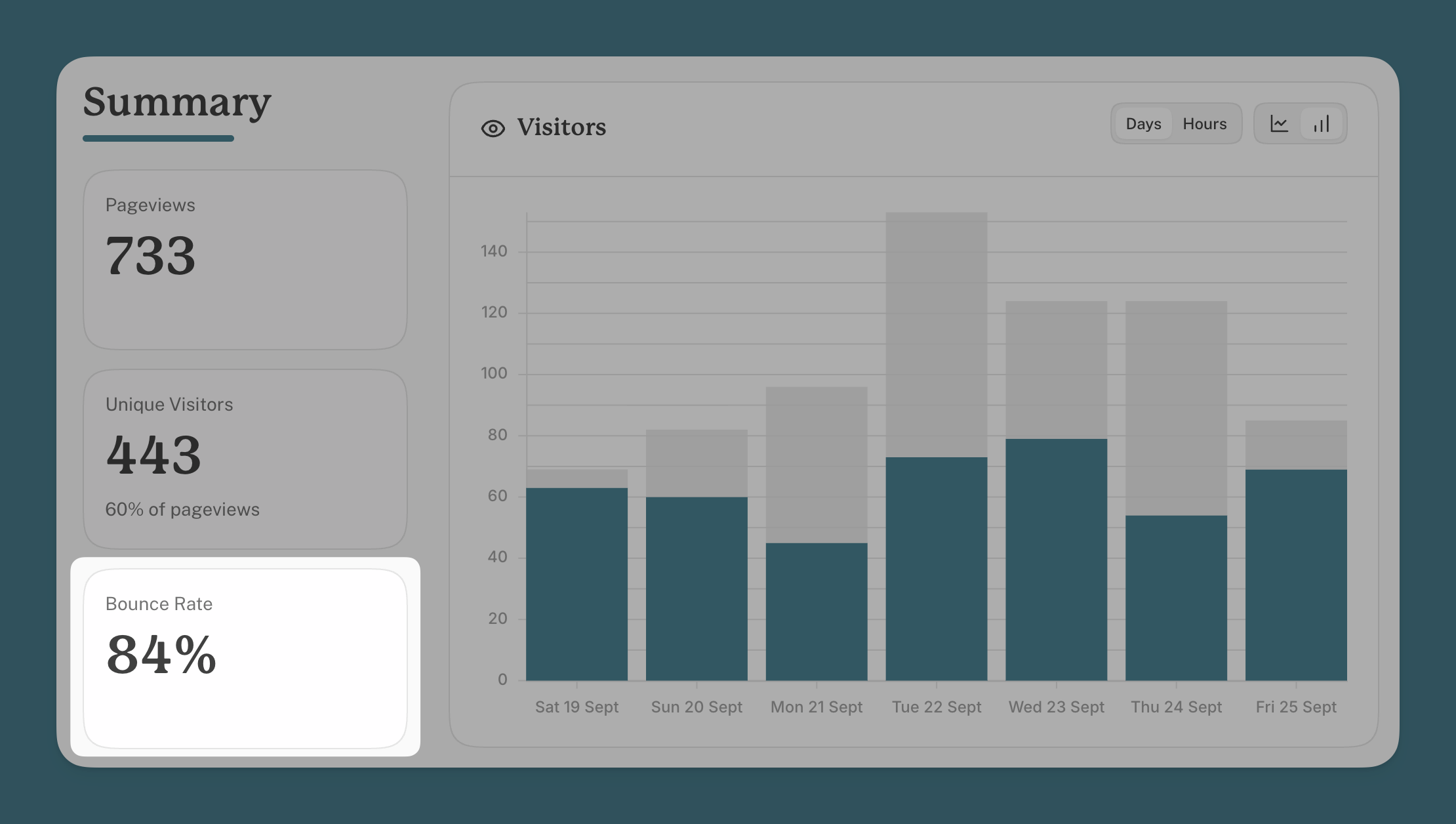
The prominent figure in the summary section displays the overall bounce rate for your selected date range.
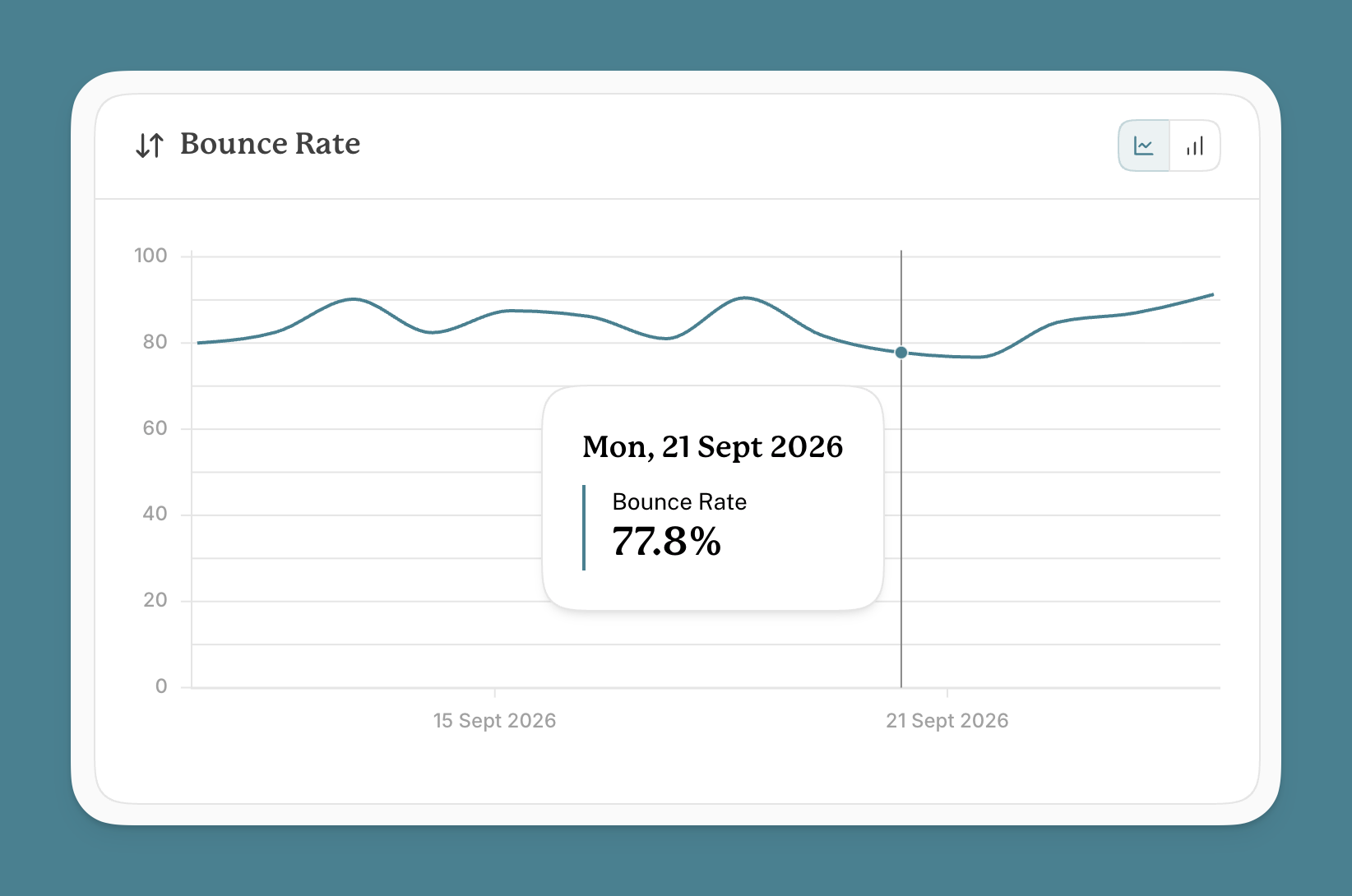
You can also view a chart of your bounce rate over time.
Best Practices for Interpretation
Pro tip: For the most accurate assessment, evaluate bounce rates at the end of the day. Since visitors are counted as bounces until they navigate to another page, your dashboard may temporarily show elevated bounce rates during periods of high traffic until visitors begin exploring your site further.
Cabin doesn't currently break bounce rate down by page.
File: branding.md
Branded Dashboards
Available onScale
If you're reporting to clients, the dashboard they open can carry their brand rather than ours. Branding is set per domain, so each client site can look like itself.
What you can change
- Logo: upload a PNG, JPEG, WebP or GIF. It appears at the top of the dashboard, above the domain name.
- Colour theme: pick the accent colour used for charts and highlights throughout the dashboard.
Both apply to the private dashboard and to a public dashboard for that domain, so a client link looks right whether you share the link or share the site with their own Cabin account.
Setting it up
- Open the domain's settings on your Domains page.
- Turn on the Branding card.
- Drop in a logo, choose a colour, and it's applied.
Removing the logo or clearing the colour returns that domain to Cabin's default look.
If you change plan
Your logo and colour are stored, not deleted, when a subscription changes. On a plan without branding they simply stop being served, and the dashboard falls back to Cabin's default. Move back to Scale and everything reappears exactly as you left it.
File: bypass-ad-blockers.md
Bypass Ad-blockers
Ad-blockers don't just block ads, they also block analytics services. Even though Cabin doesn't use cookies or track individual users, ad-blockers may still categorize it alongside other analytics services and block the withcabin.com domain.
By using your own custom domain instead of the default withcabin.com domain, you can ensure your privacy-respecting analytics continue to work properly, giving you valuable insights about your website without compromising user privacy.
How to set up your custom domain
Update your DNS: Add a CNAME record for a subdomain (e.g., cabin.yourdomain.com) pointing to
custom.withcabin.com.INFO
Choose a subdomain name that doesn't include terms commonly blocked by ad-blockers such as analytics, tracker, stats, or collect.
INFO
If you use Cloudflare, please turn off the Proxy for this record.
Validate your domain: Enter your custom subdomain in the domain settings on withcabin.com and click Validate. Cabin will verify your DNS configuration and automatically issue a free SSL certificate to maintain secure, encrypted connections.
Update your website: Replace the default tracking code on your website with your new custom domain version.
Instead of:
html<script src="https://scripts.withcabin.com/hello.js" async defer></script>Use:
html<script src="https://cabin.yourdomain.com/hello.js" async defer></script>
File: campaigns-and-utms.md
Campaigns and UTM Parameters
Available onevery plan
Cabin allows you to identify and analyze marketing campaigns from referral traffic using UTM parameters, helping you measure ROI effectively.
What are UTM Parameters?
UTM (Urchin Tracking Module) parameters are special URL parameters that help track the effectiveness of your marketing campaigns. They provide information about where your traffic is coming from and which marketing efforts are driving visitors to your site.
Key UTM Parameters
utm_campaign: Identifies a specific promotional campaign (e.g., "summer_sale", "product_launch")utm_medium: Indicates the marketing medium (e.g., "email", "paid_social", "cpc")utm_source: Specifies the source of the traffic (e.g., "instagram", "newsletter", "google")
Example
In the following example, a 'summer_sale' campaign is tracked from a paid Instagram ad:
https://myshop.com?utm_campaign=summer_sale&utm_medium=paid_social&utm_source=instagram
Cabin digests these automatically and displays them in the Campaigns section of the dashboard. Clicking on a campaign will show the source, medium and path of the referrals from that campaign.
File: contact.md
Contact
If you have any questions, feedback or suggestions please get in touch at hello@withcabin.com
Please feel free to tap the feedback box while signed in anywhere on the site.
File: dashboard.md
Using the dashboard
Available onevery plan
A few things in the dashboard that are easy to miss.
Zoom to a day
Click a day on the visitors chart, either a bar or a point on the line, and the whole dashboard narrows to that day, hour by hour. The date picker follows along, so use it to go back to a longer range.
Search with ⌘K
Press ⌘K (Ctrl+K on Windows and Linux), or click the search button in the header. From there you can jump to any of your domains, add a new one, open your settings pages, or search these docs.
Unusual traffic
Now and then a site gets a burst of automated traffic: a scraper, a load test or an SEO tool. When Cabin spots one and a person has checked it, an Unusual traffic label appears above the visitors chart for any date range that includes those days. Click it to see what was found, such as how many page views came in against your usual level.
- The numbers on the page still include that traffic, but it doesn't count towards your plan.
- There's nothing you need to do. If you're behind a CDN like Cloudflare, its bot settings usually deal with this kind of traffic.
- The label isn't shown on public dashboards.
Changing your email
Go to Settings, and under Details click Edit. Enter the new address and your current password, and Cabin sends a code to the new address to confirm it.
- If you sign in with Google or GitHub, your email comes from that account and can't be changed here.
- Weekly report recipients aren't updated for you. Check each site's email reports settings afterwards.
File: email-reports.md
Email Reports
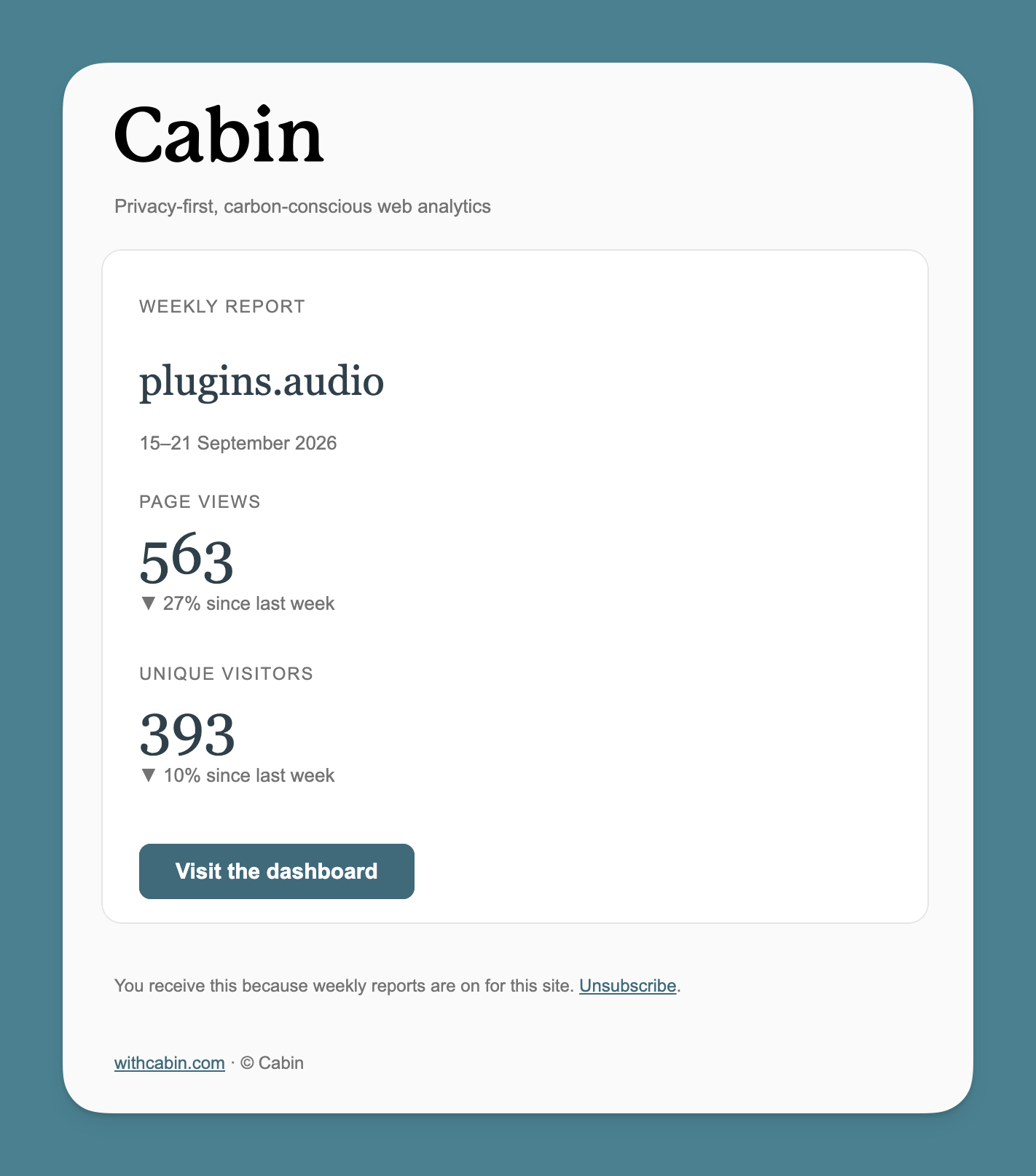
Cabin can email a weekly summary of each domain's traffic, so you (or your client, or your team) can see how a site is doing without opening the dashboard. Reports go out every Monday at 08:00 UTC and cover the previous seven days.
Turning reports on
There's no global on/off switch. Reports follow the recipient list on each domain's settings page, under Email reports:
- Plus: a single switch that sends the report to your account email address.
- Scale: add as many recipients as you like, and remove them at any time. Clearing the list stops that domain's reports.
If someone has shared a site with you, its reports follow the owner's plan: on Plus the switch sends to the owner's address, and on Scale you can add yourself (or anyone) as a recipient. Sharing a site doesn't add anyone to its reports on its own.
Every report has an unsubscribe link, so a recipient can take themselves off the list without asking you.
What's in it
Each report covers one domain: pageviews and unique visitors for the last seven days, each with the change against the week before, and a link straight to the dashboard.
File: energy-and-carbon.md
Energy & Carbon
Cabin measures how much data each of your pages moves, and turns that into an estimate of the carbon your site emits. It runs automatically on the pages your visitors actually load, so there's nothing to set up.
How It Works
Our carbon tracking system analyzes all files loaded on your website to calculate the total data transfer. A page analysis is triggered when:
- The page receives visitor traffic
- At least 3 days have passed since the previous analysis
- The page content has been modified (detected by checking the last-modified header and comparing the HTML against our stored hash)
This intelligent approach prevents unnecessary processing of unchanged assets, conserving both computational resources and energy.
Each analysis is recorded in a historical log specific to that page.
Visitor Load Calculation
We determine how much data each visitor loads by applying a percentage based on their browsing history:
| Visit Type | Asset Load |
|---|---|
| First visit to your website | 100% of page assets |
| First visit to the specific page, but has visited your domain before | 50% |
| Returning visitor to the specific page | 5% |
CO2 Calculations
Our carbon emissions calculations are powered by The Green Web Foundation's CO2.js library.
Digital activities have a carbon footprint, and our goal is to help you understand and reduce yours. The CO2.js library allows us to estimate the environmental impact of your website's data transfer by converting bytes into carbon emissions estimates.
The calculations take into account various factors in the digital supply chain, including network infrastructure, user devices, and data centers.
We automatically check your hosting provider against The Green Web Foundation database to determine if you're using a green hosting service, which can significantly reduce your website's carbon footprint.
Why some pages show no energy data
Occasionally a page shows no page size or carbon estimate. The most common reasons are:
- The site blocks automated requests. To measure a page Cabin loads it the way a browser would. If your site (or a service in front of it, like Cloudflare) blocks automated visitors, the analysis can't complete.
- The page returned an error or doesn't exist. A
404, a redirect loop, or a page that requires logging in can't be measured. - The page was too slow to respond and the analysis timed out.
This is usually nothing to worry about. If a page blocks automated visitors, your bot protection is doing its job, and you still get full analytics for that page (visits, referrers, events); only the energy estimate is missing. For most sites that's a perfectly reasonable trade-off and you don't need to change anything. Cabin also re-checks pages automatically as they receive traffic, so transient problems clear on their own.
If you want energy data for a blocked page
Measuring a protected page means letting Cabin's analyzer past your bot protection, which is a security trade-off rather than a free win. Weigh it against why the protection is there.
Cabin's requests identify themselves with a User-Agent of Cabin-Size/0.1 withcabin.com and an X-Cabin-Bot: 1 header.
WARNING
These are just labels, and anyone can copy them. A firewall rule that allows traffic based on this user-agent or header will let any request through your bot protection. Only do this if you accept that, and keep the rule as narrow as you can.
Cloudflare
- Bot Fight Mode (Free) can't be skipped with a rule: it runs outside Cloudflare's rules engine. The only lever is to turn it off (Security → Bots), which lowers protection across your whole site. Consider whether that's worth it just for carbon data.
- Super Bot Fight Mode (Pro/Business) does run on the rules engine: prefer it. Add a WAF custom rule with the Skip action matching
http.user_agent contains "Cabin-Size", set to skip Super Bot Fight Mode only. That's far more targeted than disabling protection globally. - AI Crawl Control (all plans): a separate feature from Bot Fight Mode, often on by default, and a common reason a page comes back blocked even when nothing else looks unusual. Go to Security → AI Crawl Control: Cloudflare generates its own WAF rule for this, and supports editing that rule directly to add an exception (an extra user-agent condition) rather than turning the whole thing off. Add a clause excluding
http.user_agent contains "Cabin-Size"and every other AI crawler stays blocked. Worth keeping in mind this one exists specifically to keep AI training scrapers out, so an exception here is a more pointed trade-off than the Bot Fight Mode case above, because anyone who spoofs the same header gets past the AI-scraper block too, not just generic bot detection.
Other firewalls and WAFs
Add a narrowly-scoped allow rule for requests where the User-Agent contains Cabin-Size (or the X-Cabin-Bot header is present), keeping the spoofing caveat above in mind.
Once allowed, Cabin picks the page back up on its next visit.
File: events.md
Event Tracking
Events record the things people do on your site, not just the pages they land on: a signup, a download, a video played. They're anonymous like the rest of Cabin, and they take one attribute or one line of JavaScript to add.
What are Events?
Events allow you to track specific user interactions that occur on your website beyond standard page views. While page analytics tell you which pages users visit, events provide deeper insights into how users engage with your content and features.
Common use cases for events include:
- Button clicks and link interactions
- Form submissions
- Video plays, pauses, and completions
- File downloads
- Newsletter signups
- Feature usage
- Custom conversion actions
Tracking Events
Cabin automatically records which page triggered each event, giving you context for user interactions. There are two ways to implement event tracking:
1. Using HTML Data Attributes
Add the data-cabin-event attribute to any HTML element:
html
<a href="menu.pdf" data-cabin-event="Download Menu">Download Menu</a>HTML attributes are automatically converted to click events when the element is clicked.
2. Using JavaScript
For more complex interactions or custom triggers, use the JavaScript method:
js
cabin.event('Download Menu')This approach gives you flexibility to trigger events based on any condition or user action.
Examples
Here are some common event tracking examples:
html
<!-- Track PDF downloads -->
<a href="report.pdf" data-cabin-event="Download Report">Download Annual Report</a>

<!-- Track video plays -->
<button data-cabin-event="Play Tutorial Video">Play Video</button>

<!-- Track form submissions -->
<form onsubmit="cabin.event('Newsletter Signup'); return true;">
    <!-- form fields -->
    <button type="submit">Subscribe</button>
</form>
Viewing Events in the Dashboard
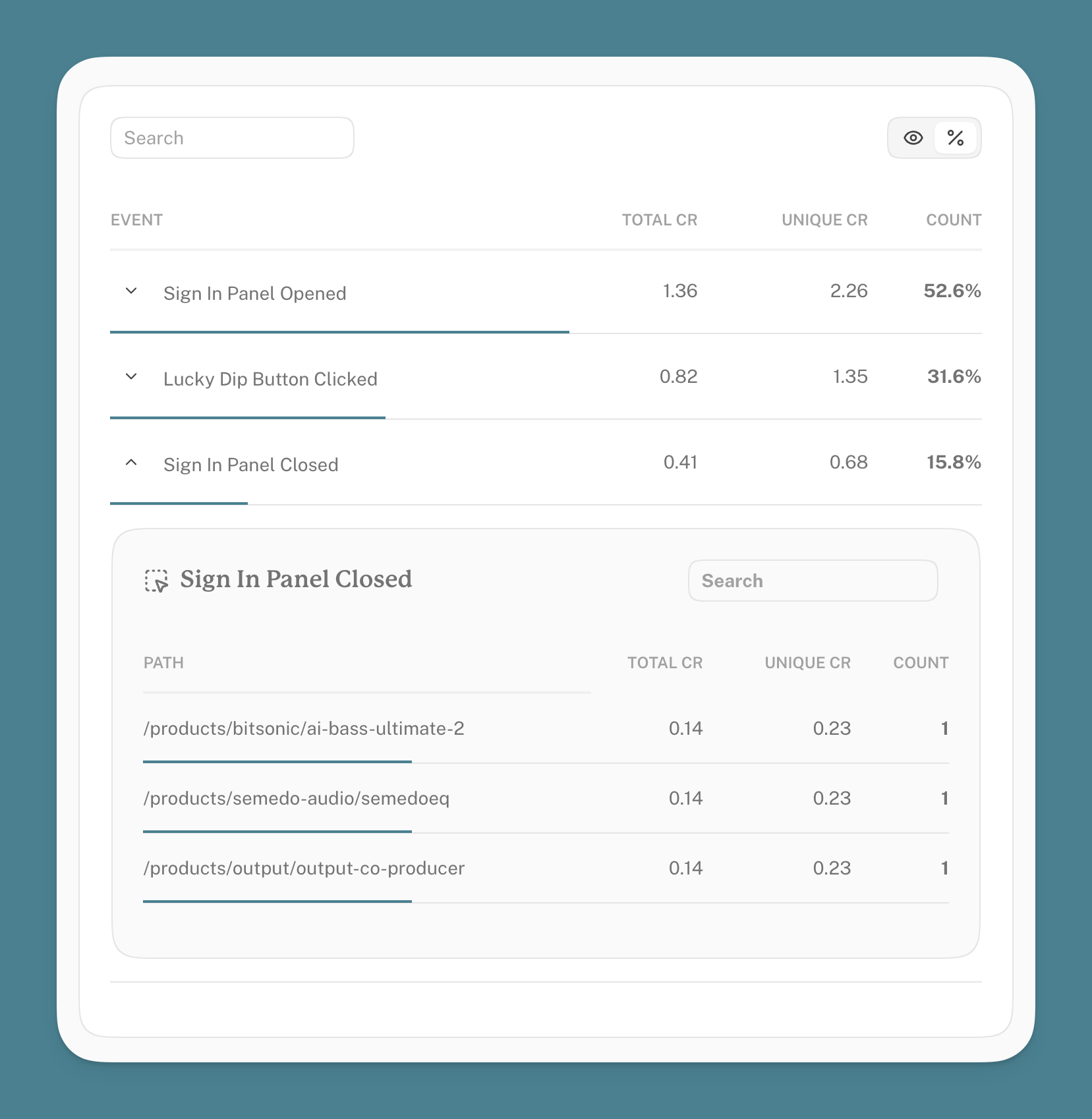
Events are displayed in a dedicated list on your dashboard. Each event can be expanded to see which pages triggered the events. The dashboard shows click rates for both Unique Visitors and Total Visitors, allowing you to analyze both overall engagement and unique-visitor interaction patterns.
File: export-options.md
Data Ownership & Export Options
Available onevery plan
All data related to you and your domains is owned by you. We provide flexible options to access and download your data whenever needed.
Data Ownership
You maintain complete control over your data. If you delete a domain or account, ALL associated data is permanently removed. The domain disappears from your account right away, and its analytics data is purged shortly afterwards by an automated cleanup process.
WARNING
There is no recovery process after domain or account deletion. We do not maintain backups or previous versions. You have 100% control over your data's lifecycle.
We do retain minimal analytical data (domain name and monthly hit count) for internal benchmarking purposes. This helps us optimize our services and align resource allocation with usage patterns.
NOTE
How long your analytics are kept depends on your plan: 30 days on Free, 12 months on Plus, and unlimited on Scale. Export anything you'd like to keep beyond your plan's retention window.
Exporting Your Data
Dashboard Export
Our streamlined export feature allows you to download data directly from your dashboard:
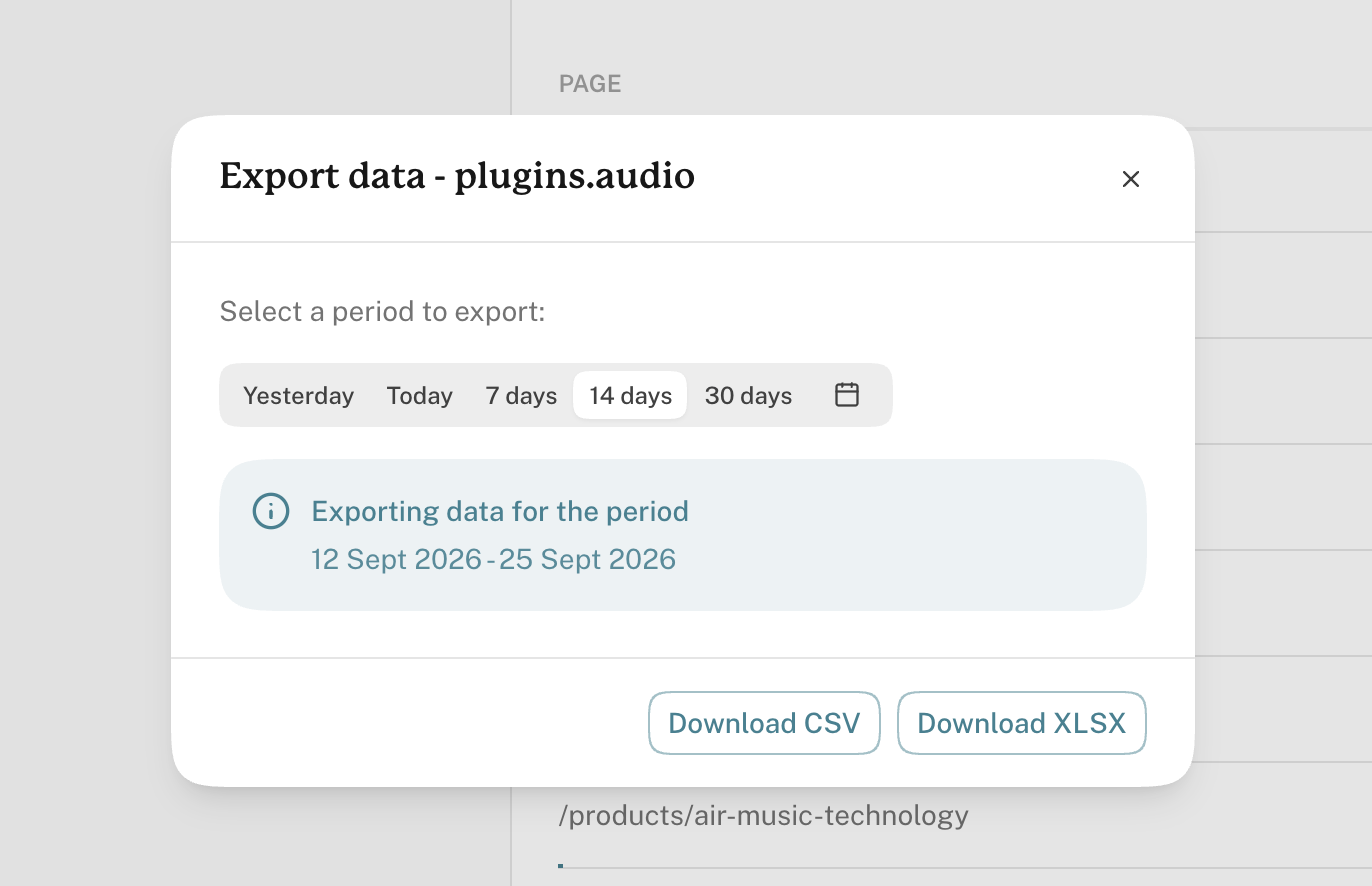
- Navigate to the dashboard for your desired domain
- Select your preferred date range using the date picker
- Click the menu icon (three dots) at the top of the dashboard
- Choose the export option
Export Formats
Download your data in your preferred format:
- Excel (.xlsx): A single file with multiple organized sheets
- CSV: Multiple .csv files bundled in a convenient zip archive
All exports reflect the date range currently selected in your dashboard, so you control exactly what comes out.
Exports are also the answer to retention: your plan's window (30 days on Free, 12 months on Plus) limits what the dashboard can show you, not what you can keep. Export before data ages out and it's yours indefinitely.
You can also pull the same data programmatically with the API or ask an AI assistant for it over MCP.
File: index.md
Cabin Analytics Documentation
Cabin is a privacy-first, carbon-conscious web analytics service. It's lightweight, compliant with all privacy laws, and the ideal cookieless alternative to Google Analytics.
- No cookies, so no consent banner
- No data sharing and no ad networks
- A 2 KB script that won't slow your site down
- Compliant with GDPR, CCPA, and more
Cabin comes in three plans, Free, Plus and Scale, and every one of them includes the full dashboard, scroll depth, AI/MCP access, public dashboards and data export. See plans and limits for what the paid plans add.
This documentation is available in English, Français, Deutsch, Nederlands, Italiano and 日本語.
Privacy by Design
Cabin is built from the ground up using Privacy by Design principles. We never store unique identifiers for your visitors, and our non-relational data structure makes it impossible to identify individuals based on their location, browser, OS, or language.
We don't sell or share any data with third parties or ad networks. Your visitors' data remains private and useless to advertising platforms.
Environmental Responsibility
Cabin's tracking script is 2 KB compressed, a fraction of the size of Google Analytics' loader, and that loader then pulls in far more JavaScript behind it. Keeping Cabin that small is a constraint we defend, not a happy accident: you can check the number yourself in your browser's network tab.
Beyond the script, the biggest lever on a hosted service's emissions is where its servers sit, because that decides which electricity grid they draw from. Cabin's ingest servers, the ones your visitors' browsers talk to, are placed with that in mind:
- Clean grids first. Two of the three regions Cabin runs in draw from grids that are over 95% carbon-free. The third serves Asia-Pacific, where no clean grid exists, and is the least carbon-intensive option that still keeps latency low there.
- Close to visitors. Each region takes the traffic nearest to it, so a beacon travels a short distance and the page view is recorded quickly, which matters on a fast bounce.
- Small, efficient machines. Ingest is light work, so each region runs on a small server rather than a large one sitting mostly idle. That's cheaper and lower in energy.
The same grid-intensity methodology sits behind your site's carbon estimates, which use The Green Web Foundation's CO2.js.
Data Collection
The Cabin script sends minimal data points, with additional information inferred from the user-agent and request headers.
Sent by the script
| Data point | When |
|---|---|
| Page URL | Every page view |
| Referrer | First page view of a visit only |
| Screen width | Every page view |
| Page load time | Every page view |
| Visit counts | Every page view |
| Time on page | When the visitor leaves the page |
| Scroll depth | When the visitor leaves the page |
| Event name | Only when your site triggers an event |
The referrer's query string is stripped before it leaves the browser, so nothing sensitive in a referring URL reaches us.
Inferred from the request
| Data point | Example |
|---|---|
| Timestamp | 1627589208201 |
| Source | social |
| Country | GB |
| Browser | chrome |
| Device | mobile |
| OS | iOS |
| Language | en |
| Bounce | false |
| utm_source | |
| utm_campaign | summer_sale |
| utm_medium | paid_social |
Unique Visitors Without Cookies
How does Cabin determine unique visitors without storing identifiers?
Cabin counts unique visitors without identifiers, IP addresses or fingerprinting, using a property of HTTP caching that browsers already have:
When a visitor interacts with Cabin, the request is cached in their browser like any standard web resource. We set a last-modified header in the response to the start of the current day. On subsequent requests, the browser automatically sends this header back to check if the request is still valid. Cabin then increments the last-modified time by one second with each visit.
By calculating the difference between the last-modified time and the day's start, we can determine the number of visits without storing any personal data. The first request indicates a unique visit, while subsequent requests help us track metrics like bounce rate.
You can read more about this on our blog:
How Cabin measures unique visitors without cookies.
Visitor Geolocation
Every web request includes an IP address. Cabin converts this address in transit (within server memory only) to an ISO country code with no further location detail. We store only the country code. The IP address is immediately discarded and never logged.
For where that happens and where your data is stored, see the privacy policy.
File: install.md
Installing Cabin
Start by adding your domain on the Domains page. Then follow the instructions below to add Cabin to your site.
The script is the same everywhere: one line, 2 KB, no configuration. Once it's live, visits show up in your dashboard within a few seconds.
It's also open source. You can read exactly what runs on your visitors' browsers at github.com/withcabin/hello.js, and the built file in that repository is byte-for-byte the one the CDN serves, so there's nothing to take on trust.
Basic Installation
Place the following code before your closing </body> tag.
html
<script async defer src="https://scripts.withcabin.com/hello.js"></script>WordPress
- Install the Insert Headers and Footers plugin.
- Go to Settings > Insert Headers and Footers menu.
- Paste the code below into the Footer scripts:html
<script async defer src="https://scripts.withcabin.com/hello.js"></script> - Click Save.
Shopify
NOTE
This requires access to your Shopify theme code.
- From your Shopify admin, go to Online Store > Themes.
- Find the theme you want to edit and click Actions > Edit code.
- In the Layout directory, click on
theme.liquid. - Find the closing
</body>tag and paste the following code just before it:html<script async defer src="https://scripts.withcabin.com/hello.js"></script> - Click Save.
WooCommerce
- Install and activate the Code Snippets plugin.
- Go to Snippets > Add New.
- Give your snippet a title like "Cabin Analytics".
- Paste the following code:php
function add_cabin_analytics() { echo '<script async defer src="https://scripts.withcabin.com/hello.js"></script>'; } add_action('wp_footer', 'add_cabin_analytics'); - Set the snippet to run on the "Frontend" only.
- Click Save Changes and Activate.
Alternatively, you can follow the WordPress instructions above using the Insert Headers and Footers plugin.
Squarespace
NOTE
Only available on Squarespace's Business or Commerce plans.
- Click Settings, click Advanced and then click Code Injection
- Add the following code to the Footer:html
<script async defer src="https://scripts.withcabin.com/hello.js"></script> - Click Save at the top of the page.
More details at Squarespace
Wix
NOTE
Only available on a paid Wix plan.
- Click Settings in your site's dashboard.
- Click the Tracking & Analytics tab under Advanced Settings.
- Click + New Tool and select Custom from the dropdown.
- Paste in the code from below:html
<script async defer src="https://scripts.withcabin.com/hello.js"></script> - Select the relevant domain. Note: This option will appear only if you have multiple domains.
- Enter a name for your custom code. E.g. Cabin Script
- Add Code to Pages: Choose All Pages and Load code once.
- Place Code in: Choose Body - end.
- Click Apply.
More details on Wix
Next.js
Create or edit the app/layout.js (or app/layout.tsx) file and import the script in your RootLayout component:
jsx
import Script from 'next/script'

export default function RootLayout({ children }) {
  return (
    <html lang="en">
      <head>
        <Script
          src="https://scripts.withcabin.com/hello.js"
          strategy="afterInteractive"
        />
      </head>
      <body>
        {children}
      </body>
    </html>
  )
}
More details on Next.js Script component.
Ghost
- Go to your Ghost Admin settings.
- Click on Code Injection in the sidebar menu.
- Paste the tracking code below into the Foot section:html
<script async defer src="https://scripts.withcabin.com/hello.js"></script> - Click Save.
More details on Ghost.
Webflow
NOTE
Only available for paid Webflow accounts.
- Go to your Project settings (gear icon in the left sidebar).
- Select Custom code in the tabs menu.
- Paste the tracking code below into the Footer Code section:html
<script async defer src="https://scripts.withcabin.com/hello.js"></script> - Click Save Changes.
- Click Publish to make your changes live.
More details on Webflow custom code.
Nuxt
- Edit your
nuxt.config.jsfile - Add the script to
app.head:jsexport default defineNuxtConfig({ app: { head: { script: [ { src: 'https://scripts.withcabin.com/hello.js', defer: true, async: true } ] } } })
More details on Nuxt head management.
Svelte/SvelteKit
- Edit your
src/app.htmlfile - Add the script before the closing
</body>tag:html<!DOCTYPE html> <html lang="en"> <head> <meta charset="utf-8" /> <meta name="viewport" content="width=device-width" /> %sveltekit.head% </head> <body data-sveltekit-preload-data="hover"> <div style="display: contents">%sveltekit.body%</div> <script async defer src="https://scripts.withcabin.com/hello.js"></script> </body> </html>
More details on SvelteKit app.html.
Gatsby
Install the Gatsby Script API:
bashnpm install gatsby-scriptEdit your layout component (typically in
src/components/layout.js):jsximport React from "react" import { Script } from "gatsby" export default function Layout({ children }) { return ( <> {children} <Script src="https://scripts.withcabin.com/hello.js" strategy="postHydrate" async defer /> </> ) }
More details on Gatsby Script API.
Hugo
- Create or edit the file
layouts/partials/footer.htmlin your Hugo project. - Add the following code:html
<script async defer src="https://scripts.withcabin.com/hello.js"></script> - Make sure this partial is included in your site's main layout.
Alternatively, you can add it directly to layouts/_default/baseof.html before the closing </body> tag.
More details on Hugo Templates.
Astro
- Edit your main layout file (typically in
src/layouts/Layout.astro):
html
<html lang="en">
    <head>
    <!-- Your head content -->
    </head>
    <body>
    <slot />
    <script async defer src="https://scripts.withcabin.com/hello.js"></script>
    </body>
</html>
More details on Astro Layouts.
Framer
NOTE
This requires a paid Framer plan that allows custom code insertion.
- Open your Framer project.
- Click on the Settings icon in the left sidebar.
- Select the General tab.
- Scroll down to Custom Code.
- Paste the following code in the Before
</body>tag section:html<script async defer src="https://scripts.withcabin.com/hello.js"></script> - Click Save.
Bubble
- Go to your Bubble app's dashboard.
- Click on Settings in the left sidebar.
- Navigate to the SEO/metatags tab.
- Scroll down to Advanced settings.
- Find the Script in the body section and paste the following code:html
<script async defer src="https://scripts.withcabin.com/hello.js"></script> - Click Save.
More details on Bubble's SEO/metatags settings.
Carrd
NOTE
This requires a Carrd Pro Standard plan or higher.
- While editing your Carrd site, click on the + button (Add Element) in the top bar.
- Select Embed.
- Set Type to Code.
- Paste the following code:html
<script async defer src="https://scripts.withcabin.com/hello.js"></script> - (Optional) Set Label to something descriptive like "Cabin Analytics".
- For Style, select Hidden and choose Body End for placement.
- Click Add.
- Click Publish to make your changes live.
More details on Carrd Custom Code Embedding.
Webnode
NOTE
This requires a Webnode Premium plan (for projects created after June 26, 2023).
- In your Webnode editor, position your mouse in a section where you want to add the code.
- Click the plus button to add new content.
- In the content bubble, click the circle for more options, then click on HTML.
- Paste the following code:html
<script async defer src="https://scripts.withcabin.com/hello.js"></script> - Note that you will only be able to see the HTML added in the published version of your website, not directly in the editor.
- Click Publish to make your changes live.
More details on Webnode HTML code insertion.
Google Tag Manager
WARNING
While this method works, it's not recommended for privacy-focused analytics. Using Google Tag Manager sends data to Google servers before loading Cabin, which defeats some of Cabin's privacy benefits. Consider direct installation when possible.
- Log in to your Google Tag Manager account.
- Select your container.
- Click on Tags in the left sidebar.
- Click New to create a new tag.
- Click on Tag Configuration and select Custom HTML.
- Paste the following code:html
<script async defer src="https://scripts.withcabin.com/hello.js"></script> - Click on Triggering and select a trigger (typically "All Pages").
- Name your tag (e.g., "Cabin Analytics") and click Save.
- Click Submit to publish your changes.
More details on Google Tag Manager.
Checking it works
Open your site, then open your Cabin dashboard: your own visit should appear right away. If nothing shows up, check that the script tag is in the published version of the page (view source and search for hello.js), and that an ad-blocker isn't blocking it. Custom domains fix that for good.
You can also ask an AI assistant to check it for you with MCP: "is Cabin installed correctly on example.com?"
If you need more help installing Cabin, please contact hello@withcabin.com.
File: mcp-connect.md
Connecting your client
Available onevery plan
Cabin's MCP server lives at https://withcabin.com/mcp and authenticates with OAuth: your client opens a browser window where you sign in to Cabin and approve access.
Let your agent set itself up
Paste this prompt into Claude Code, Codex, Cursor or any agent that can fetch a URL, and it will read the official instructions and configure itself.
Or set it up by hand. Find your client below.
Claude (claude.ai)
Cabin is listed in the Claude connector directory, so the quickest way is:
- Open Cabin in the Claude directory
- Click to connect it, then sign in to Cabin and approve access
Once connected, enable the Cabin connector in any conversation via the + button in the chat input, then Connectors.
Add it by URL
If you can't use the directory (some Team and Enterprise workspaces turn it off), add Cabin as a custom connector instead:
- Open claude.ai, click your profile icon, then select Settings
- In the sidebar, click Connectors
- Scroll down and click Add custom connector
- Enter the URL:
https://withcabin.com/mcp - Click Add, and you'll be redirected through the OAuth flow to grant Cabin access
Claude Code
Run the following command in your terminal:
bash
claude mcp add --transport http cabin https://withcabin.com/mcpClaude Code will open your browser to complete the OAuth flow. Verify the server was added with claude mcp list.
Cursor
Add the following to your MCP config file at ~/.cursor/mcp.json:
json
{
  "mcpServers": {
    "cabin": {
      "type": "http",
      "url": "https://withcabin.com/mcp"
    }
  }
}
Restart Cursor, then open Settings → MCP. The Cabin server will appear. Click it to complete the OAuth authentication flow.
ChatGPT
- Open chatgpt.com and go to Settings → Apps & Connectors
- Click Advanced settings and enable Developer Mode
- Go back to the Connectors tab and click Create
- Enter a name (e.g. "Cabin Analytics") and the URL:
https://withcabin.com/mcp - Set Authentication to OAuth
- Click Save, and you'll be redirected through the OAuth flow to grant Cabin access
Codex
Run the following command in your terminal:
bash
codex mcp add cabin --url https://withcabin.com/mcpThen authenticate with codex mcp login cabin to complete the OAuth flow. Verify the server was added with codex mcp list.
Prefer editing config directly? Add this to ~/.codex/config.toml:
toml
[mcp_servers.cabin]
url = "https://withcabin.com/mcp"
Streamable HTTP MCP servers require Codex CLI 0.121.0 or newer.
VS Code (Copilot)
Add the following to .vscode/mcp.json in your workspace:
json
{
  "servers": {
    "cabin": {
      "type": "http",
      "url": "https://withcabin.com/mcp"
    }
  }
}
Open Copilot Chat in Agent mode and click the tools icon and the Cabin server will appear. On first use, VS Code opens your browser to complete the OAuth flow.
Windsurf
Windsurf uses the mcp-remote proxy to handle OAuth. Add the following to ~/.codeium/windsurf/mcp_config.json:
json
{
  "mcpServers": {
    "cabin": {
      "command": "npx",
      "args": ["-y", "mcp-remote", "https://withcabin.com/mcp"]
    }
  }
}
Requires Node.js. On first connection, mcp-remote opens your browser to complete the OAuth flow.
Gemini CLI
Add the following to your Gemini CLI settings file at ~/.gemini/settings.json:
json
{
  "mcpServers": {
    "cabin": {
      "url": "https://withcabin.com/mcp"
    }
  }
}
Then run /mcp auth cabin in the Gemini CLI to complete the OAuth flow. The Gemini web app doesn't currently support custom MCP servers, so use the Gemini CLI or Gemini Enterprise.
Zed
Add the following to your Zed settings (cmd+,):
json
{
  "context_servers": {
    "cabin": {
      "url": "https://withcabin.com/mcp"
    }
  }
}
Zed automatically triggers the OAuth flow when you first use the server.
JetBrains (IntelliJ, WebStorm, etc.)
- Open Settings → Tools → AI Assistant → Model Context Protocol (MCP)
- Click Add and choose the HTTP connection type
- Enter the following config:
json
{
  "mcpServers": {
    "cabin": {
      "url": "https://withcabin.com/mcp"
    }
  }
}- Click OK, then Apply. The server will show "Authorization required". Click Authorize to complete the OAuth flow. Requires AI Assistant plugin 2025.2+.
Cline
- Open Cline in VS Code and click the MCP icon (plug icon) in the top bar
- Click Configure MCP Servers to open
cline_mcp_settings.json - Add the following:
json
{
  "mcpServers": {
    "cabin": {
      "url": "https://withcabin.com/mcp",
      "type": "streamableHttp",
      "disabled": false,
      "autoApprove": [],
      "timeout": 60
    }
  }
}- Save the file. Cline will prompt with an Authenticate button. Click it to complete the OAuth flow.
Le Chat (Mistral)
- Open chat.mistral.ai, expand Intelligence in the left sidebar, then select Connectors
- Click + Add Connector and select the Custom MCP Connector tab
- Enter a connector name (e.g.
cabin) and the URL:https://withcabin.com/mcp - Click Connect, and you'll be redirected through the OAuth flow to grant Cabin access
OpenCode
Add the following to your OpenCode config:
json
{
  "mcpServers": {
    "cabin": {
      "type": "remote",
      "url": "https://withcabin.com/mcp"
    }
  }
}
OpenCode handles OAuth automatically. On first connection it opens your browser to authenticate. You can also trigger it manually with opencode mcp auth cabin.
Managing connected agents
Every agent you authorise appears in your dashboard under Settings → MCP, with the date it connected. Revoke one there and it loses access immediately, without affecting the others.
MCP doesn't use API keys. The REST API keys are a separate thing, for querying analytics over HTTP.
File: mcp-tools.md
Tools reference
Available onevery plan
When you connect an AI client to Cabin, it gains access to the tools below. Your assistant chooses which ones to call based on what you ask. Tools are grouped by what they do:
- Read tools only fetch data and are safe to run any time.
- Write tools create or change records: most clients confirm with you first.
- Destructive tools remove data: clients always ask before running these.
Read tools work on your own domains and on sites shared with you. Write and destructive tools only work on domains you own. Each tool respects the plan of the site's owner. A tool that needs a feature you don't have says so rather than returning partial data.
Read tools
list_domains
List every domain on your account, each with its private dashboard URL (and public dashboard URL if sharing is enabled). Sites other people have shared with you are included and marked shared, with the owner's email and your role. A domain marked locked is over its owner's plan limit. No parameters.
get_analytics
Analytics for a domain over a date range: pageviews, unique visitors, sessions, top pages, referrers and AI crawlers.
domain: the domain to query (e.g.example.com)date_from,date_to: the range, inYYYY-MM-DDformatscope: what to include:core,pages,referrals,events,ai_crawlers, or a combination (defaultcore).eventsreturns your custom events on Plus and Scale.limit_lists: number of items to return in each list (default 50)
ai_crawlers returns crawler visits such as GPTBot and ClaudeBot, with each crawler's type (training, search or user) and how many Cloudflare blocked. It needs Cloudflare connected and the Plus plan or above. Crawler visits are never counted in pageviews. Days are in UTC.
get_domain_settings
The current settings of one of your domains: timezone, public dashboard state, weekly-report recipients, custom script host, brand colour and the excluded IP list. Read this before changing emailRecipients or excludeIps, since both replace the whole list.
domain: the domain to read
validate_installation
Check whether the Cabin tracking script is correctly installed on one of your domains.
domain: the domain to check
check_custom_domain_dns
Verify that a custom subdomain's CNAME is correctly pointing at custom.withcabin.com.
custom: the custom subdomain to check (e.g.stats.example.com)
analyse_page
Run a carbon/energy and performance analysis on a single URL, including historical averages. URLs Cabin hasn't seen before can take 20–30 seconds.
url: the full URL to analyse (e.g.https://example.com/about)force: re-run even if a recent analysis exists (defaultfalse)
Write tools
create_domain
Add a new domain to your account. Returns the dashboard URL and the tracking-script snippet to install.
domain: the domain to add (no protocol or path)tz: IANA timezone for the analytics, e.g.Europe/London(defaultUTC)
update_domain_settings
Update one or more settings on a domain you own.
domain: the domain to updatepublic: make the dashboard publicly accessiblepublicPassword: password-protect the public dashboard; an empty string removes it (Plus and Scale)privacypage: show a privacy statement on the public dashboardemailRecipients: array of email addresses that receive this domain's weekly report (Plus sends to your own account email only; Scale sends to anyone). Replaces the entire list, so to add or remove one address, read the current recipients withget_domain_settingsfirst, then send the full updated list. An empty array stops all weekly emails.tz: IANA timezonecolor: dashboard brand colour (hex)excludeIps: array of up to 30 IP addresses or CIDR ranges (IPv4 or IPv6) whose visits are dropped at ingest. Replaces the whole list; pass[]to clear. Setting or reading this list through an AI client shares those addresses with that client's provider.
add_custom_domain
Attach a custom subdomain so the tracking script serves from your own host, bypassing ad-blockers. Returns DNS setup instructions and the new <script> tag to install once DNS verifies (Plus and Scale).
domain: the Cabin domain the subdomain will point atcustom: the subdomain to use, e.g.stats.example.com(avoid names likeanalytics,tracker, orstatsthat ad-blockers themselves target)
Destructive tools
delete_domain
Permanently remove a domain from your account; its analytics data is then scheduled for deletion. This is irreversible.
domain: the domain to delete
remove_custom_domain
Detach a custom subdomain from a domain you own, and return the default-host script tag to swap back into your site.
domain: the Cabin domain the subdomain is attached tocustom: the subdomain to remove
File: mcp.md
AI & MCP
Available onevery plan
Cabin includes a built-in MCP server, so you can connect your analytics to AI assistants like Claude, Claude Code, Cursor, ChatGPT, and Codex. Ask questions about your traffic in plain language, and let your assistant add domains, install the tracking script, and pull reports for you.
Individual actions still follow your plan's normal limits. For example, carbon analysis and custom domains need Plus or Scale.
What you can do
Once connected, you can ask things like:
- "How many pageviews did I get last week?"
- "What's my best-performing day this year?"
- "Which campaign drove the most signups last month?"
- "Compare my bounce rate this month vs last month."
- "Add Cabin to example.com and check the script is installed."
- "What's the carbon footprint of my busiest pages?"
- "Make me a PDF report of last month's traffic."
Your assistant decides which Cabin tools to call to answer. Actions that create, change, or delete data always ask for your confirmation first.
How to connect
Point your client at https://withcabin.com/mcp and sign in through your browser to authorise it. There's no API key to create or paste: the server uses OAuth, so your client sends you to Cabin, you approve it, and it's connected. See Connecting your client for step-by-step instructions for each app.
Every agent you authorise is listed in your dashboard under Settings → MCP, so you can revoke one whenever you like.
Next steps
- Connecting your client: setup for Claude, Claude Code, Cursor, ChatGPT, Codex, and more.
- Tools reference: every action your assistant can perform.
File: plans.md
Plans and Limits
Cabin comes in three plans: Free, Plus and Scale. Prices live on the pricing page, so they're always current.
| Free | Plus | Scale | |
|---|---|---|---|
| Sites | 1 | 10 | Unlimited |
| Pageviews / month | 10,000 | 100,000 | 5,000,000 |
| Data retention | 30 days | 12 months | Unlimited |
| People you can share sites with | None | 2 | Unlimited |
What each plan includes
Every plan, Free included, has the full analytics dashboard, scroll depth, AI/MCP access, public dashboards, the per-domain privacy pledge page, IP exclusion and data export.
Plus adds:
- Custom events
- Energy and carbon reporting
- Custom domains, so ad-blockers don't block your analytics
- A weekly email report to your own inbox
- The REST API
- Password-protected public dashboards
- Google Search Console, bringing search queries and rankings into the dashboard
- AI traffic, separated from your human visitors
- Sharing sites with up to 2 other Cabin users, as viewers or managers
Scale adds:
- Branded dashboards with your logo and colour
- Weekly reports to as many recipients as you like
- Sharing sites with as many people as you like
- Priority support
Going over a limit
Cabin never stops recording your traffic for being over a limit. Nothing is dropped, and nothing is deleted.
Pageviews. On the Free plan, once you pass your monthly allowance the dashboard shows data up to the day you crossed it. The rest unlocks on the 1st of the next month, or immediately if you upgrade.
People. If your plan allows fewer people than you share with, the most recent ones lose access until your plan covers them again. Nobody is removed. See sharing a site.
Sites. Sites beyond your plan's limit keep collecting data in the background. You just can't open their dashboards until you upgrade, at which point everything they collected is there.
Retention. Your plan's retention window controls how far back the dashboard and API can look, not how much you can keep. Export anything you want to hold on to for longer and it's yours indefinitely.
Changing plan
Upgrade from the pricing page, or manage an existing subscription under Settings in your account, which opens the billing portal for changes, invoices and cancellation.
Paid features stop being served when a subscription ends, but your data and settings are kept. Come back to a plan that includes them and everything reappears as you left it, including your branding.
File: privacy.md
Privacy law compliance
Privacy laws differ across the world. Cabin is built to comply with all of them, because of what it doesn't collect rather than what it promises.
This page is about the laws that apply to you when you measure your site with Cabin. For what Cabin does with your own account data, and where it's stored, see the privacy policy.
GDPR (Europe & UK)
General Data Protection Regulation (GDPR) demands that data subjects may not be identifiable unless authorized.
"The data subjects are identifiable if they can be directly or indirectly identified, especially by reference to an identifier such as a name, an identification number, location data, an online identifier or one of several special characteristics, which expresses the physical, physiological, genetic, mental, commercial, cultural or social identity of these natural persons."
NOTE
Cabin does not allow personal identification, directly or indirectly. Cabin does not allow its data to "express the physical, physiological, genetic, mental, commercial, cultural or social identity of these natural persons."
UK GDPR Compliance
Since Brexit, the UK has implemented its own version of GDPR (UK GDPR). Cabin's data model complies with both EU GDPR and UK GDPR requirements by:
- Not collecting or processing personal data that could identify individuals
- Not using cookies, tracking technologies, or online identifiers
- Only storing aggregated, non-personal statistical data (domain-level tallies)
- Not enabling the creation of user profiles or behavioral tracking
For more information on UK GDPR, see the ICO's guidance.
PECR Compliance
The Privacy and Electronic Communications Regulations (PECR) sits alongside the UK GDPR and provides specific privacy rules for electronic communications, including:
- Rules about cookies and similar technologies
- Requirements for electronic marketing communications
- Security requirements for public electronic communications services
Cabin complies with PECR by:
- Not using cookies or similar tracking technologies
- Not collecting personal data for marketing purposes
- Ensuring all data collection is anonymous and non-identifiable
CCPA/CPRA (California)
The California Consumer Privacy Act (CCPA), as amended by the California Privacy Rights Act (CPRA), provides California consumers with specific rights regarding their personal information. Under the CCPA, California consumers have the following rights:
The right to know what personal information is collected about them
NOTE
Cabin does not collect personally identifiable information
The right to know whether and to whom their personal information is sold/disclosed, and to opt-out of its sale or sharing
NOTE
Cabin does not sell or share data with anyone
The right to access their personal information that has been collected
NOTE
Cabin is not capable of identifying information related to a person
The right to request deletion of their personal information
NOTE
Cabin is not capable of identifying information related to a person. All data can be deleted by a Cabin user
The right to correct inaccurate personal information
NOTE
Cabin does not collect personally identifiable information that would need correction
The right to limit the use and disclosure of sensitive personal information
NOTE
Cabin does not collect sensitive personal information as defined by the CCPA/CPRA
The right to not be discriminated against for exercising their rights under the Act
NOTE
Cabin is not capable of identifying information related to a person therefore business owners cannot target individuals for discrimination
The CCPA/CPRA defines personal information as:
Personal information is information that identifies, relates to, or could reasonably be linked with you or your household. For example, it could include your name, social security number, email address, records of products purchased, internet browsing history, geolocation data, fingerprints, and inferences from other personal information that could create a profile about your preferences and characteristics.
NOTE
Cabin's data model does not allow inferences to be made from personal information. Cabin does not use identifiers or fingerprints. Cabin does store country-level IP geolocation, but this is not related to any other data points and cannot be used to identify individuals.
Site owners can list IP addresses and ranges to exclude from their own stats. The visitor's address is compared against that list in memory at the same moment as the country lookup, and a matching visit is discarded without being counted or stored. The list itself is the site owner's configuration, not visitor data.
DPA (France)
The French Data Protection Act (Loi Informatique et Libertés), first enacted in 1978 and subsequently amended to implement GDPR, establishes France's data protection framework. The Act is enforced by the Commission Nationale de l'Informatique et des Libertés (CNIL).
Regarding the use of trackers and cookies:
Users must provide free, informed, specific and unequivocal consent.
NOTE
While trackers intended to generate traffic statistics are exempt from the DPA, Cabin does not use cookies, therefore does not require consent.
Cookie walls and consent requirements
The CNIL guidelines specify that continuing to browse a website, scrolling a page, or using a mobile application does not constitute valid consent for cookies. Additionally, the validity of "cookie walls" (blocking access to a website if cookies are not accepted) must be assessed on a case-by-case basis.
NOTE
Cabin does not implement cookie walls or use any tracking technologies that would require user consent.
Exemptions for technical cookies
Prior information and consent requirements do not apply to cookies whose sole purpose is to enable or facilitate communication or are strictly necessary to provide an online service requested by the user.
NOTE
Cabin sets no cookies at all on the sites it measures. The Cabin dashboard uses a session cookie to keep you signed in, which is strictly necessary for the service you asked for and is exempt from consent requirements. Your visitors never encounter it.
Data minimization and security
The French DPA requires implementing appropriate technical and organizational measures to protect personal data and ensure that only the minimum amount of data necessary is collected, stored, and processed.
NOTE
Cabin's privacy-first data model ensures minimal data collection, with no personal identifiers that could be used to identify individuals.
More information on the French DPA
PIPEDA (Canada)
The Personal Information Protection and Electronic Documents Act (PIPEDA) is Canada's federal privacy law governing how private-sector organizations collect, use, and disclose personal information in commercial activities.
PIPEDA requires organizations to:
- Obtain meaningful consent for the collection, use, and disclosure of personal information
- Collect only information necessary for identified purposes
- Protect personal information with appropriate security measures
- Provide individuals access to their personal information
- Be transparent about privacy practices
NOTE
Cabin does not collect personal information as defined by PIPEDA. Our privacy-first data model ensures no personally identifiable information is stored.
Additionally, Canada's Anti-Spam Legislation (CASL) requires express consent for the installation of cookies and similar technologies.
NOTE
Cabin does not use cookies or similar tracking technologies, so no consent is required under CASL.
APP (Australia)
The Australian Privacy Principles (APP) establish Australia's privacy framework, enforced by the Office of the Australian Information Commissioner (OAIC). The APPs require organizations to:
Implement practices for privacy compliance
Organizations must take reasonable steps to implement practices, procedures, and systems that ensure compliance with the APPs and enable handling of privacy inquiries and complaints.
NOTE
Cabin's privacy-first approach is designed to comply with APP requirements through minimal data collection and transparent practices.
Maintain a clear and accessible privacy policy
Organizations must have a clearly expressed and up-to-date privacy policy explaining how personal information is managed, including collection methods, purposes, and disclosure practices.
NOTE
Cabin's privacy policy clearly outlines our limited data collection practices and how we protect user information.
Notify individuals about data collection
When collecting personal information, organizations must take reasonable steps to notify individuals about the collection, its purpose, and how the information will be used and disclosed.
NOTE
Cabin collects minimal data and is transparent about its collection practices. Since Cabin does not collect personal information that could identify individuals, many notification requirements are not applicable.
Provide choice and control
While Australia doesn't have explicit cookie consent requirements like the EU, the OAIC emphasizes transparency about tracking technologies and data collection.
NOTE
Cabin uses no tracking technologies on your visitors, so there is nothing for them to opt out of. What Cabin collects is described in full in Data Collection.
More information on Australian Privacy Principles
LGPD (Brazil)
Brazil's General Data Protection Law (Lei Geral de Proteção de Dados or LGPD) came into effect in September 2020 and is enforced by the Brazilian Data Protection Authority (ANPD). The law applies to any organization processing personal data of Brazilian residents, regardless of where the organization is located.
Key requirements of the LGPD include:
- Obtaining valid consent that is "free, informed and unequivocal"
- Providing one of ten legal bases for processing personal data
- Appointing a Data Protection Officer (DPO)
- Respecting data subject rights (access, correction, deletion, etc.)
- Notifying authorities and affected individuals of data breaches
- Special protections for children's data requiring parental consent
Penalties for non-compliance include fines of up to 2% of annual revenue in Brazil (capped at 50 million reals per violation), as well as potential data processing suspensions or bans.
NOTE
Cabin does not collect personal data as defined by Brazil's LGPD. Since Cabin does not use cookies or collect identifiable information, many LGPD requirements do not apply to our service.
For more information on Brazil's data protection framework, see the official LGPD documentation.
PDPA (Argentina)
Argentina's Personal Data Protection Law (PDPA) regulates the treatment of personal data by both government agencies and private organizations. While the law doesn't specifically mention cookies, the principles of data protection apply to all forms of personal data collection.
Key aspects of Argentina's PDPA include:
Consent requirements: Organizations must obtain explicit, informed consent before collecting or processing personal data
Data minimization: Only data necessary for the specified purpose should be collected
Purpose limitation: Data should only be used for the purposes for which it was collected
Data subject rights: Individuals have rights to access, correct, and delete their personal data
NOTE
Cabin does not collect personal data as defined by Argentina's PDPA. Since Cabin does not use cookies or collect identifiable information, consent requirements under the PDPA do not apply to our service.
For more information on Argentina's data protection framework, see the official PDPA documentation.
POPIA (South Africa)
South Africa's Protection of Personal Information Act (POPIA) came into full effect on July 1, 2021, and is enforced by the Information Regulator. While POPIA doesn't explicitly mention cookies, it does regulate the processing of personal information, which includes data collected through cookies and online identifiers.
Key aspects of POPIA relevant to data collection:
Personal information definition: POPIA defines personal information broadly to include "online identifiers" and "information relating to an identifiable, living, natural person," which can encompass cookie identifiers.
Consent requirements: When collecting personal information (including via cookies), responsible parties must:
- Take reasonably practicable steps to ensure data subjects are aware of the collection
- Obtain consent for the processing of personal information, particularly for direct marketing purposes
- Provide clear information about what data is being collected and how it will be used
Cookie notices and policies: Under POPIA, websites using cookies that collect personal information should implement:
- A cookie notice informing users about cookie usage
- A comprehensive cookie policy explaining what cookies are used and their purposes
- Consent mechanisms for non-essential cookies, especially those used for direct marketing
Direct marketing restrictions: POPIA requires explicit opt-in consent for direct marketing to non-customers via electronic communications, which includes marketing facilitated by cookies.
NOTE
Cabin does not use cookies or online identifiers. Cabin's privacy-first data model ensures no personal information is collected or processed as defined by POPIA, making many of the act's requirements not applicable to our service.
For more information on South Africa's data protection framework, see the Information Regulator's website.
Swiss Federal Data Protection Act (Switzerland)
Switzerland's revised Federal Act on Data Protection (FADP/DSG) came into effect on September 1, 2023. While not an EU member state, Switzerland has updated its data protection law to align more closely with the GDPR while maintaining some unique Swiss provisions.
Key aspects of the Swiss FADP include:
- Requiring a legal basis for processing personal data
- Providing data subjects with rights to access, correct, delete their data, and data portability
- Implementing "privacy by design" and "privacy by default" principles
- Requiring data breach notifications without delay when high risks to personal data exist
- Conducting risk assessments for high-risk data processing activities
- Maintaining detailed records of all data processing activities
- Imposing penalties of up to CHF 250,000 (approximately $280,000 USD) for intentional violations
Unlike the previous version, the revised FADP no longer protects data of legal persons (companies), but still protects natural persons' data, including employees of companies.
NOTE
Cabin does not collect personal data as defined by Switzerland's FADP. Since Cabin does not use cookies or collect identifiable information, many FADP requirements do not apply to our service. Our privacy-by-design approach aligns with the FADP's requirements.
For more information on Switzerland's data protection framework, see the Federal Data Protection and Information Commissioner's website.
Norwegian Personal Data Act (Norway)
Norway, while not an EU member state, has implemented the GDPR through its Personal Data Act (Personopplysningsloven). The Norwegian Data Protection Authority (Datatilsynet) enforces this law, which came into effect in July 2018.
While largely aligned with the GDPR, Norway's implementation includes specific provisions related to:
- Processing of children's personal data (with age of consent set at 13 years)
- Processing in employment contexts
- Credit information processing
- Camera surveillance
- Data protection by design and default requirements
As a member of the European Economic Area (EEA), Norway follows the European Data Protection Board (EDPB) guidelines on data protection impact assessments, certification mechanisms, and codes of conduct.
NOTE
Cabin complies with Norway's Personal Data Act through our privacy-first data model that ensures no personally identifiable information is collected or processed. Since Cabin does not use cookies or collect identifiable information, many specific requirements under Norwegian law do not apply to our service.
For more information on Norway's data protection framework, see the Norwegian Data Protection Authority's website and the EDPB's guidance for SMEs.
Spanish Organic Law on Data Protection (Spain)
Spain implemented the GDPR through the Organic Law on Protection of Personal Data and Guarantee of Digital Rights (LOPDGDD), which came into effect in December 2018. While aligned with the GDPR, the Spanish law includes additional provisions on:
- Digital rights in employment relationships
- Right to digital disconnection
- Protection of minors online
- Right to be forgotten in social networks and equivalent services
- Right to digital education
Spain's Data Protection Authority (AEPD) has issued specific guidelines on cookie consent that were updated in July 2023 and enforced since January 11, 2024.
NOTE
Cabin complies with Spain's LOPDGDD through our privacy-first data model that ensures no personally identifiable information is collected or processed. Since Cabin does not use cookies, Spain's specific cookie consent requirements do not apply to our service.
For more information on Spain's data protection framework, see the Spanish Data Protection Authority's website.
Italian Personal Data Protection Code (Italy)
Italy implemented the GDPR through amendments to its existing Personal Data Protection Code. The Italian Data Protection Authority (Garante per la protezione dei dati personali) is known for its strict enforcement and has issued specific guidelines on:
- Cookie usage and consent requirements
- Data processing in employment contexts
- Biometric data processing
- Video surveillance
NOTE
Cabin complies with Italy's Personal Data Protection Code through our privacy-first data model that ensures no personally identifiable information is collected or processed. Since Cabin does not use cookies, Italy's specific cookie consent requirements do not apply to our service.
For more information on Italy's data protection framework, see the Italian Data Protection Authority's website.
File: referrers.md
Referrers
Available onevery plan
Cabin captures referrer information when visitors arrive at your website, helping you understand where your traffic is coming from while respecting privacy. However, certain browser privacy features and technical limitations may prevent referrer data from being collected.
Common Reasons for Missing Referrer Data
Direct Navigation: When visitors type your URL directly into their browser's address bar or use a bookmark, no referrer information is available.
Security Downgrade: If a visitor clicks a link from a secure website (HTTPS) to your non-secure website (HTTP), browsers typically strip the referrer information to protect user privacy.
Explicit Blocking: When visitors click links containing the
rel="noreferrer"attribute, browsers intentionally withhold referrer information. If you notice traffic from a specific site but no referrer data, you might consider reaching out to the site owner about removing this attribute (while respecting their privacy choices).Single-page navigation: The referrer is recorded once, on the first page of a visit. Moving between pages of your own site doesn't overwrite where the visitor originally came from.
Cabin only collects the referrer information that browsers willingly provide, and never uses fingerprinting or other invasive methods to work around these privacy mechanisms. Any query string on the referring URL is stripped in the browser before it's sent, so a referrer can't leak search terms or tokens into your analytics.
File: scroll-depth.md
Scroll Depth
Available onevery plan
Scroll depth shows how far down a page your visitors get. It comes from the same script that records page views, adds no extra requests, and is anonymous like everything else in Cabin.
What is measured
Each visit records the deepest point it reached, as a percentage of the page's content. It's sent once, when the visitor leaves the page.
The percentage is measured against the page's content, not the whole document, so a long footer doesn't make a full read look like 75%. See what counts as the page.
Where to find it
On the dashboard, the Attention row shows your site's average scroll depth. The small strip beside it is a picture of a page: solid at the top and fading downward as visitors fall away. Hover a band for the exact share who got that far.
In the page peek, open any page from Top Pages and switch to the Attention tab for the same figures for that page, plus a bigger version of the strip as a list.
Reading the heat map
Each row is the share of visitors who reached at least that far down the page. The 0% row is everyone, and the rows only ever fall from there.
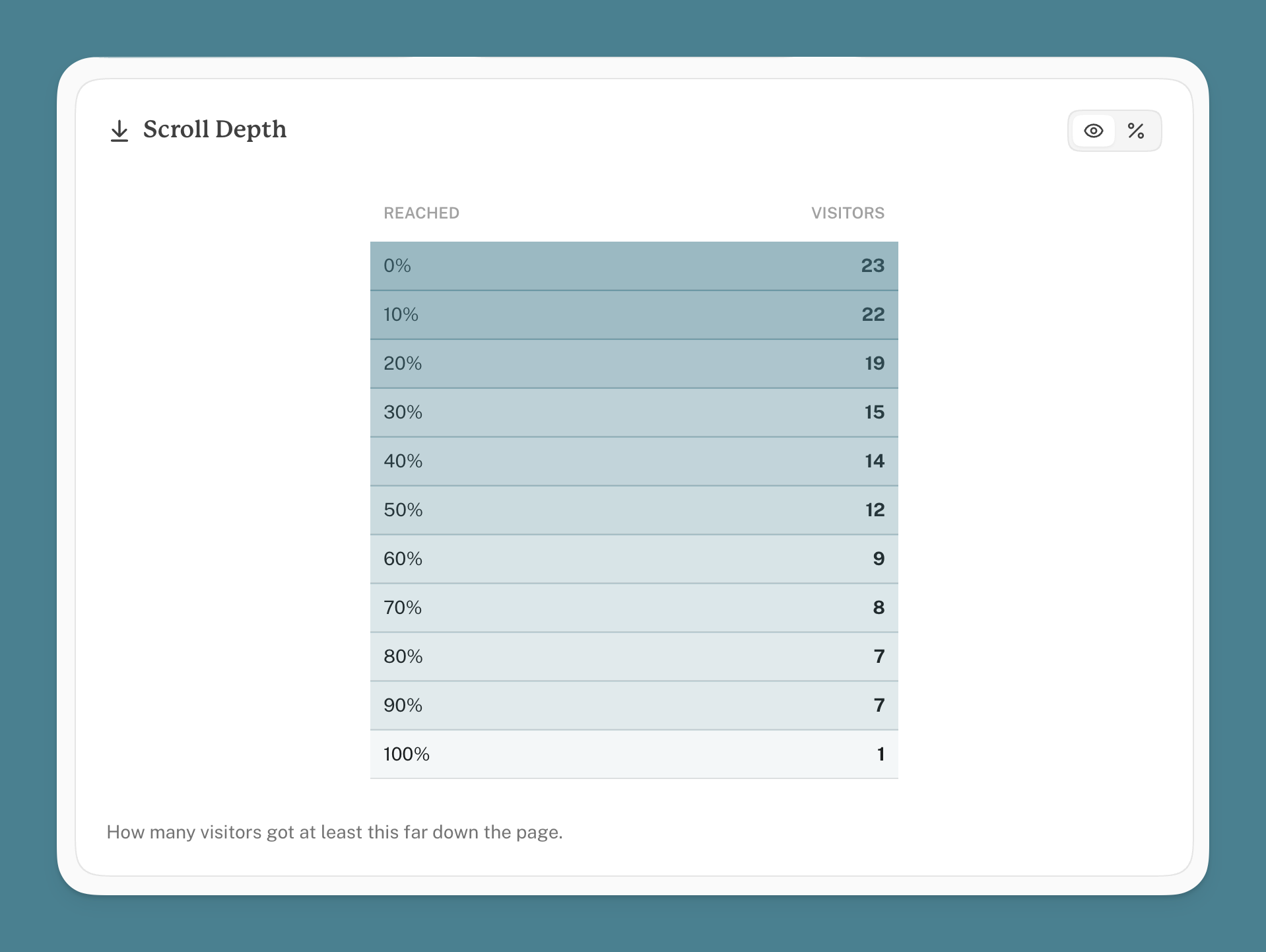
The drop between two rows is where people stopped. A big drop near the top means most visitors never scrolled. A 100% row not far below the rest means most who started kept going to the end.
Reaching 100% means the bottom of the content was on screen, not that it was read. Someone who flicks straight to the end counts.
What counts as the page
Cabin measures depth against the content block, found in this order:
- An element with
data-cabin-content, if you've added one. - Otherwise the first
<article>or<main>. - Otherwise the whole document, cut off at the first
<footer>.
If your layout has no <article> or <main>, or they wrap the sidebar and comments as well as the post, tell Cabin where the content is:
html
<div data-cabin-content>
  <!-- the article body -->
</div>
That's one of two tags scroll depth understands; the other is in the next section.
Apps, dashboards and panels
Most sites scroll the whole window. Apps often don't: they keep the header and sidebar fixed and scroll a panel in the middle. Cabin follows whichever one actually moves, so a dashboard-style layout is measured the same as an ordinary page, and you don't need to do anything.
If your layout is unusual enough that Cabin picks the wrong element, point at the right one:
html
<div data-cabin-scroll-root>
  <!-- the part of the page that scrolls -->
</div>
The two attributes
These are the only two tags scroll depth has, and they answer different questions.
| What it answers | Add it when | |
|---|---|---|
data-cabin-content | Which part of the page counts as the content? | Your page has no <article> or <main>, or one that wraps the sidebar and comments too |
data-cabin-scroll-root | Which element does the scrolling? | Cabin picks the wrong panel in an app layout |
Put another way: the scroll root is where the scrollbar is, and the content is the part inside it you want measured. On an ordinary site you never think about the first one, because the answer is the window and that's what Cabin uses unless something tells it otherwise.
html
<body>
  <header>fixed, never scrolls</header>

  <div data-cabin-scroll-root>
    <!-- the bit that moves -->
    <article data-cabin-content>
      <!-- the bit that counts -->
    </article>
    <footer>tall, shouldn't count towards the reading</footer>
  </div>
</body>
They're independent, so you might need one and not the other, and most sites need neither. Only the first tagged element of each is used.
Pages that grow as you scroll
Scroll depth is a percentage, and a percentage needs a total. On an article the total is fixed, so the figure means what you'd expect.
On a feed, or a page with a Load more button, the page gets longer while the visitor reads. The total keeps moving, and the percentage moves with it:
- Someone reads to the bottom of what's loaded. That's 100%.
- They press Load more. The page is now three times longer and they haven't read any of the new part.
- They're now at 33%.
Nothing is wrong with the number. It's a true reading of how far they got through what had loaded. But it means the percentage can go down as someone gets more involved, and on a feed that keeps loading ahead of the reader nobody ever reaches the bottom, so 100% never really happens.
What to do instead
On pages like these, count the loads rather than reading the percentage. Put an event on the button:
html
<button data-cabin-event="Load more">Load more</button>Now you can see how many times people asked for more, which is the question you were really asking. It rises with interest, rather than falling.
The scroll depth figure is still worth a look on those pages, just don't read it as "how far down they got".
What isn't counted
- Pages shorter than the screen. Nothing to scroll, so the visit is recorded as unmeasured and left out. The same goes for a page whose content block is short enough to fit on screen in full: there's no scrolling to measure, so Cabin falls back to measuring against the page instead of reporting a read nobody did.
- Visits that end abruptly. The reading is sent as the visitor leaves, and some browsers don't give the script the chance, so scroll depth (like time on page) comes from a sample of visits. The number of measured visits is shown under the average.
- Bots and scrapers. They don't run the script. AI crawlers are counted separately in AI Traffic.
Plans
Scroll depth is on every plan, Free included. It has been recorded for every site since it launched, so if your dashboard is new to you there may already be history to look at.
File: search-console.md
Google Search Console
Cabin tells you what happened after someone arrived. Google Search Console tells you what happened before: what people searched for, how often you appeared, and where you ranked. Connecting the two puts both halves on one page, per domain.
Connecting a domain
- Open the domain's settings on your Domains page.
- Find the Google Search Console card and click Connect Search Console.
- Sign in with the Google account that has access to the property, and approve the request.
Cabin asks for read-only access to your Search Console data (plus your email address, so it can show you which account is connected). It can't change anything in your Google account.
Cabin then matches the property to your domain automatically, preferring a domain property (sc-domain:example.com) when one exists. The connected property and account are shown on the settings card.
What appears in your dashboard
A Search Console section on the domain's dashboard, showing:
- Impressions and clicks for the selected date range
- A chart of both over time
- Top countries by share of search clicks
- Top search queries, each expandable for its own detail
NOTE
Google's search data runs about two days behind. A new domain, or a very recent date range, can legitimately show nothing yet.
Disconnecting
The same settings card has a Disconnect button. Search data stops appearing on the dashboard immediately. Nothing is changed inside Google Search Console itself, and you can reconnect later.
File: sharing.md
Sharing a site
Available onevery plan
There are two ways to let someone else see a site's analytics. You can share it with another Cabin user, who then sees it in their own account, or you can switch on a public dashboard link that anyone can open. Public dashboards are on every plan. Sharing with other users is on Plus and Scale.
Sharing with other Cabin users
In a domain's settings, find People, enter the person's email address, choose Viewer or Manager, and click Share.
- If they already have a Cabin account, the site appears in their domain list straight away, labelled with who shared it.
- If they don't, they get an email inviting them to sign up. Once they've created an account with that address and confirmed their email, the site is waiting in their list.
There's no accept step. You can remove someone at any time, and they can take a shared site off their own list.
Viewers and managers
| Viewer | Manager | You (the owner) | |
|---|---|---|---|
| See the dashboard, export data | ✓ | ✓ | ✓ |
| Timezone, IP exclusion, branding, public dashboard and password, privacy pledge page, email reports, custom domain, Search Console, Cloudflare | ✓ | ✓ | |
| Share the site with others, remove the site, billing | ✓ |
You can switch someone between Viewer and Manager from the People list whenever you like.
How many people
Plus lets you share with 2 people, and Scale with as many as you like. The count is people across all your sites, so sharing three sites with the same person counts once. Invitations that haven't been taken up yet count too.
A shared site runs on your plan. Its features are whatever your plan includes, whatever plan the other person is on, and its traffic counts towards your pageview allowance. So the people you share with only need a free account.
If you move to a plan that allows fewer people, nobody is deleted. The people added most recently lose access and stay on your list marked Over plan limit, and they get it back as soon as your plan covers them again.
Things to know
- Weekly reports. Sharing a site doesn't email anyone its weekly report. To send it to someone, add them as a recipient in Email reports. Extra recipients are a Scale feature.
- API and MCP. MCP can read a shared site's analytics, but its settings stay with the owner. API keys only reach the sites on your own account.
- Removing a site removes everyone's access to it.
- Agencies: it works both ways round. Keep client sites on your account and add each client, or have the client add you to the site on theirs as a manager. A manager can do the whole setup, custom domain and Search Console included, and it all stays with the client's account.
- Search Console connects with the Google account of whoever sets it up. If a manager connects it and later leaves, it keeps working until someone clicks Disconnect. The card shows which Google account it's using.
Public dashboards
Turn on Public dashboard in a domain's settings and anyone with the link can view that site's dashboard, no account needed. The link is generated for you.
Public dashboard URLs follow this format: https://withcabin.com/public/aBJ44uscYvhZ
On Plus and Scale you can also set a password, so only the people you give it to can open the dashboard. On Free, anyone with the link can view it.
The unique identifier in the URL provides several privacy benefits:
- Makes your dashboard more discreet to share
- Allows you to revoke and redistribute access at any time
- Prevents web crawlers from easily discovering your public dashboards
Disabling the public dashboard immediately revokes access for anyone holding the link. Turning it back on issues a new link, so the old one stays dead.
On Scale, a public dashboard also carries your branding, logo and colour, which is what makes it presentable to a client.
Privacy pledge page
Separately from the dashboard, you can publish a privacy pledge for a domain: a plain-language page explaining that the site measures traffic without cookies, tracking or personal data. It lives at https://withcabin.com/privacy/yourdomain.com, and it's a useful thing to link from your own privacy policy or cookie notice.
Switch it on with Show a privacy statement in the domain's settings. It's available on every plan, and it shows no analytics figures, only the pledge.
File: timezones.md
Timezones
Available onevery plan
Every domain has its own viewing timezone, which decides where Cabin draws the line between one day and the next. Set it once, in the domain's settings.
Why Timezone Settings Matter
Setting the correct viewing timezone in your domain settings is essential for accurate data analysis. Cabin organizes analytics data by day according to your specified timezone.
You can update your timezone at any time through the domain settings panel.
NOTE
Timezone changes take effect immediately and apply only to newly collected data. Historical data remains organized according to the timezone setting that was active when it was collected.
Daylight Saving Time
If your selected timezone observes daylight saving time, Cabin handles the transitions as follows:
Spring Forward (DST begins): When clocks move forward and an hour is skipped, you'll notice a gap in your hourly data for that missing hour.
Fall Back (DST ends): When clocks move backward and an hour repeats, Cabin aggregates data from both instances of that hour, providing complete coverage of user activity.
These automatic adjustments ensure your analytics remain consistent and reliable throughout seasonal time changes.